AI reel generator
AI reel generator for creators who need polished short videos
Create polished 9:16 reels from your video, audio, or images using focused AI video types for captions, explainers, promos, and creator edits.
Built for creators, educators, YouTubers, coaches, and small teams.
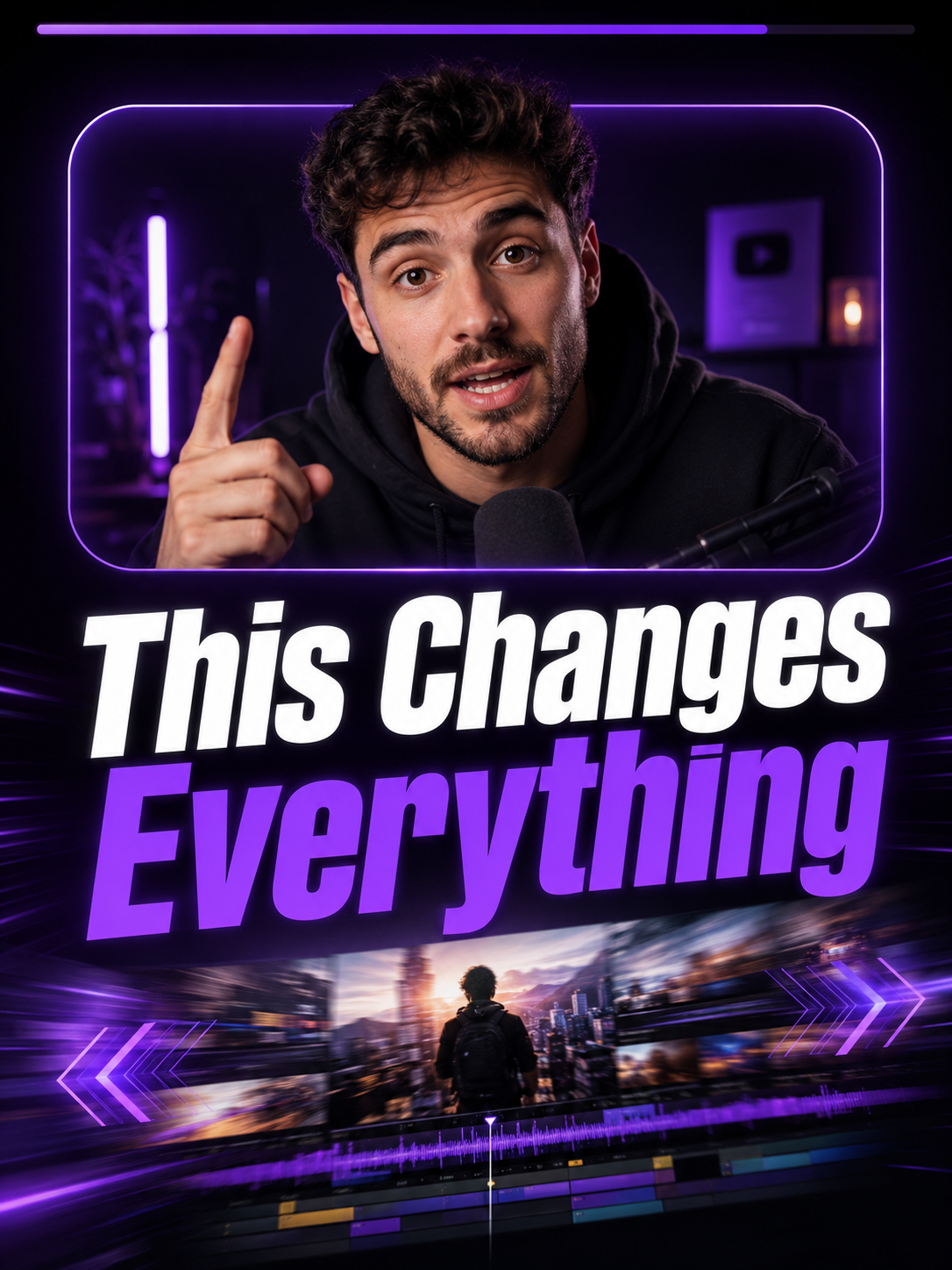
Focused video types
Choose a production workflow built for one clear output instead of a crowded format library.
Speech timing
Speech-based video types use transcripts for captions, scene timing, and text overlays.
Preview to export
Review supported previews before spending credits on the final rendered MP4.
Use cases
Why it helps
FAQ
What can I create with Itnavideo?
You can create short vertical videos using focused video types such as Dynamic Creator Reel, Auto Caption Reel, Compare Explainer, Auto Draw Explainer, and Long Video Promo.
Does Itnavideo use my real uploaded content?
Yes. The product is built around the user's uploaded video, audio, images, and transcript so the final reel follows the actual content.
How long can videos be?
The current product is focused on short reels and shorts, with video type flows designed around videos up to about 60 seconds.